Platform Overview
TQRHub is a web-based customer communication platform that helps small and medium businesses manage customer conversations, collaborate with their teams, monitor social media messages and comments, and build stronger customer relationships from a single dashboard.
TQRHub currently supports platforms such as WhatsApp Business and Facebook Messenger, and centralizes customer interactions into a unified inbox. Conversations are automatically organized into threaded topics, making it easy to manage multiple enquiries, assign work to team members, and maintain a complete customer history.
This guide explains how TQRHub works—from organizing conversations into threads to managing customer interactions and team workflows.
Getting Started
Contact us to request a demo. Once your account is configured, we'll connect your supported messaging channels and provide access to your TQRHub dashboard.
Dashboards
Roles:
- Administrators have full access to all conversations, settings, and team management
- Agents are assigned to specific categories and see only conversations relevant to their department
Your Dashboards:
You'll have access to two interfaces for managing customer requests:
Admin Dashboard: Your control center for configuring settings, managing team assignments, and overseeing all conversations across all categories.
Frontend Dashboard: A streamlined interface where agents handle conversations by assigned category, organised by active threads.
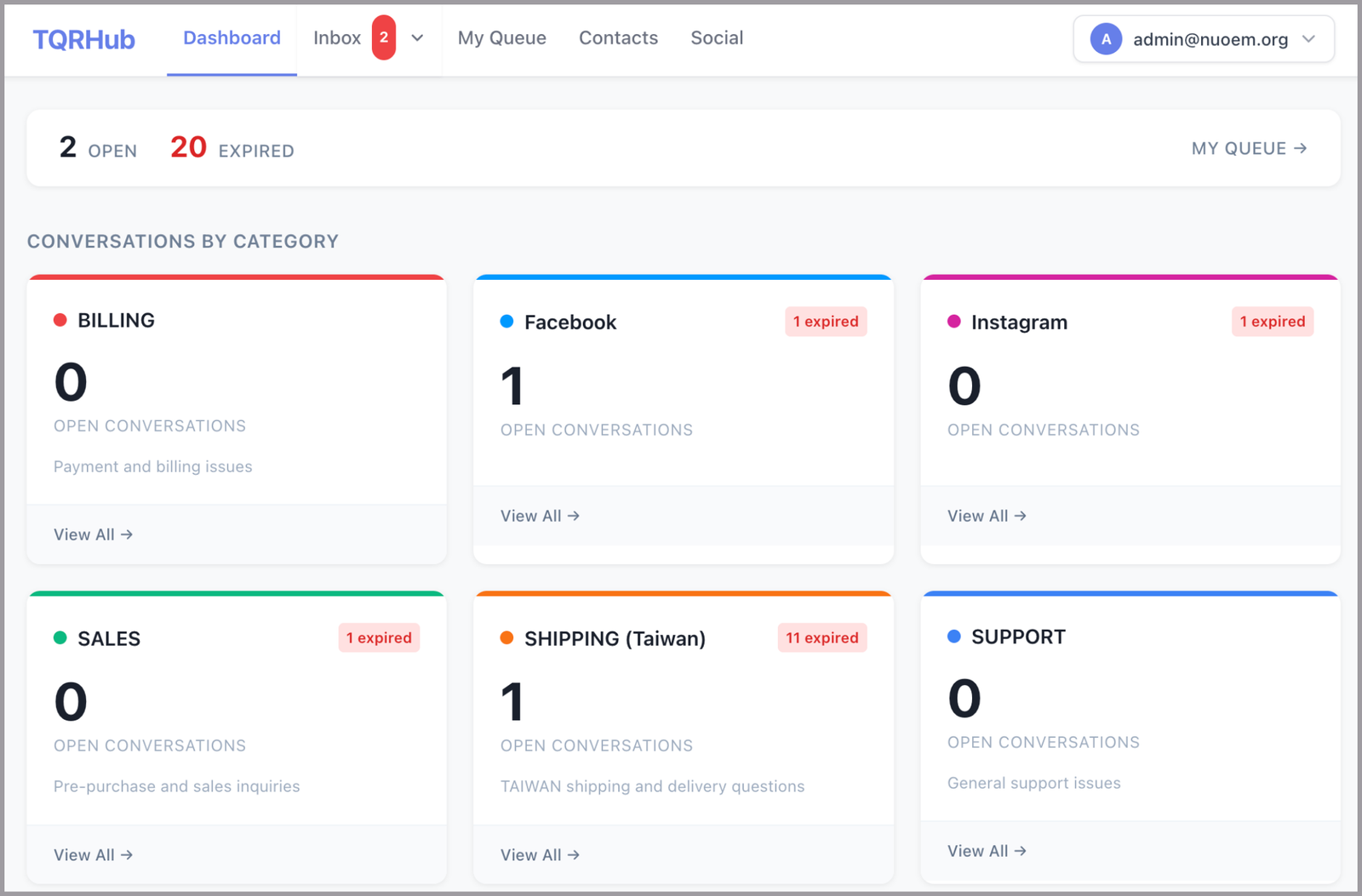
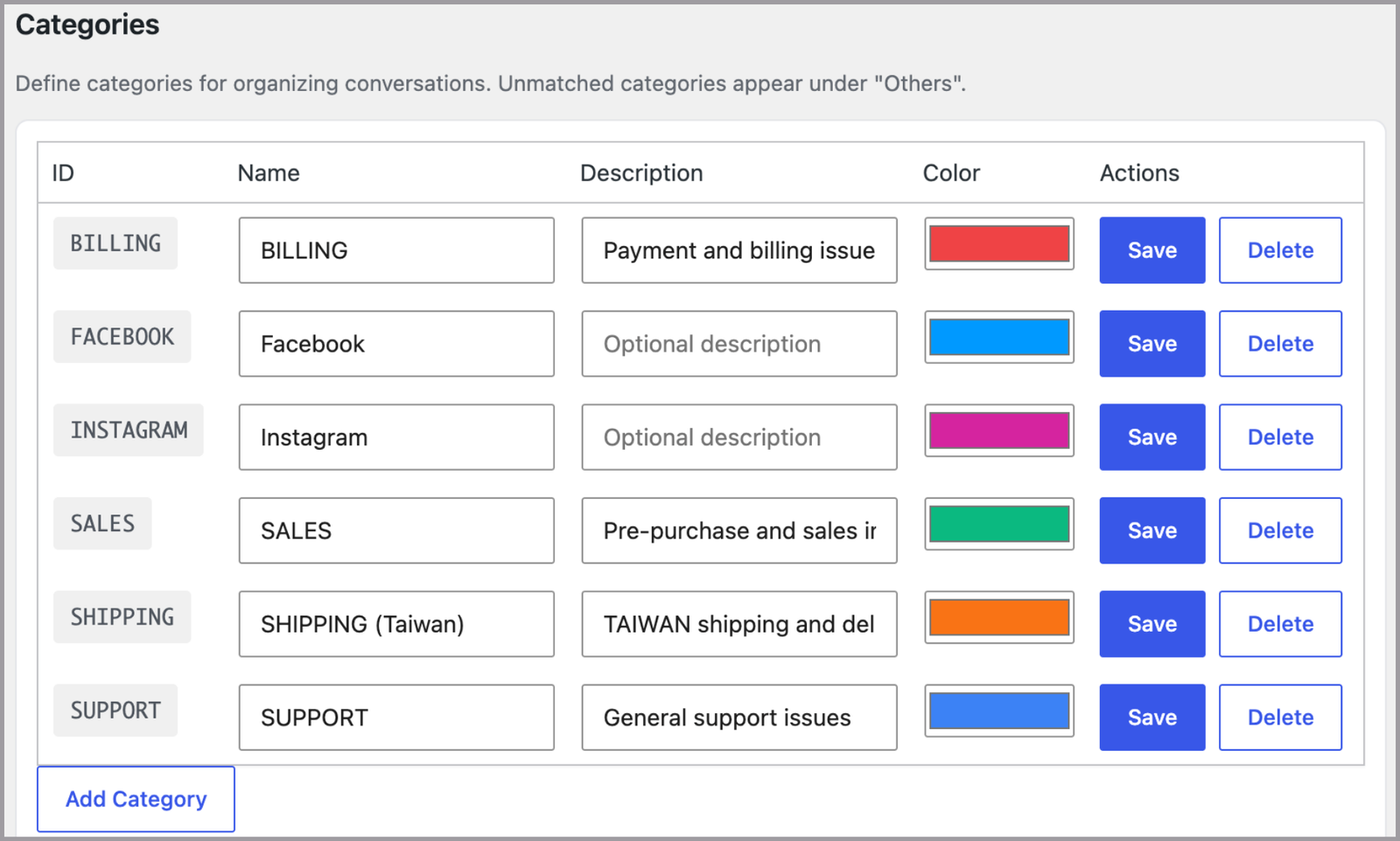
Categories are configurable in the Settings page.
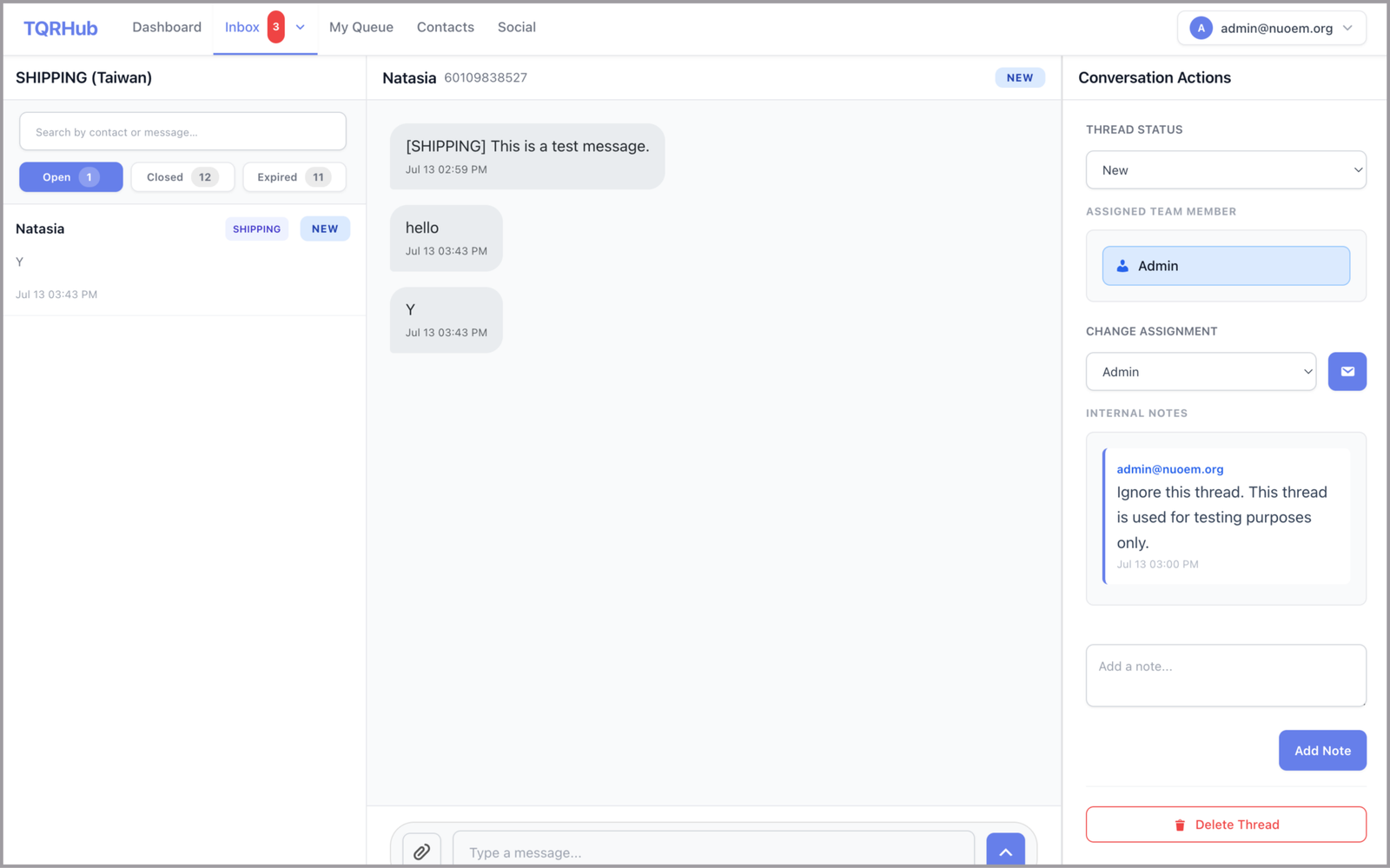
Topic View: Team members can browse conversations filtered by specific topics (e.g., /primedesk-dashboard/support/), ensuring they focus on relevant requests.
Supported Channels
TQRHub currently supports the following messaging platforms:
WhatsApp Business
TQRHub fully supports the WhatsApp Business Cloud API, allowing your team to manage customer conversations directly from the TQRHub dashboard.
Message Templates
To continue a conversation after the 24-hour window has expired, TQRHub supports Meta-approved message templates. Agents can select and send these templates directly from the conversation view to re-initiate contact in compliance with WhatsApp's messaging policies.
Once the customer replies, the 24-hour customer service window automatically reopens and normal messaging resumes.
Expiring Conversation Windows
To reduce interrupted conversations, TQRHub can notify customers approximately 30 minutes before their WhatsApp messaging window expires.
The notification includes all currently open conversation threads together with their thread IDs.
If the customer wants to continue a specific conversation after the window expires, they simply reply using the thread ID shown in the notification (for example, BILLING-001).
Alternatively, customers can send a new tagged or untagged message, and TQRHub will automatically route it to the appropriate conversation.
Facebook Messenger
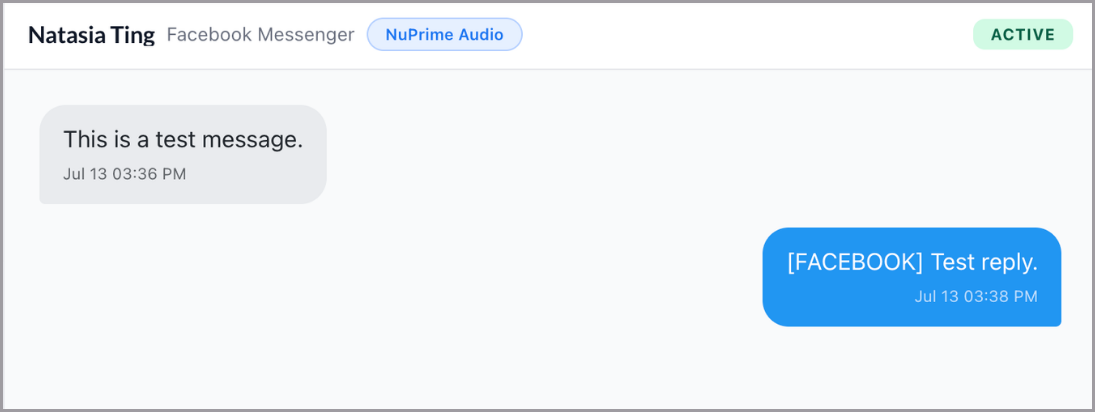
In addition to WhatsApp, PrimeDesk supports Facebook Messenger. Messenger conversations appear alongside WhatsApp threads in the agent dashboard and follow the same workflow — threads, status tracking, assignment, and internal notes all work the same way.
Unlike WhatsApp, Messenger has no 24-hour messaging window, so agents can reply at any time without needing to send a template first.
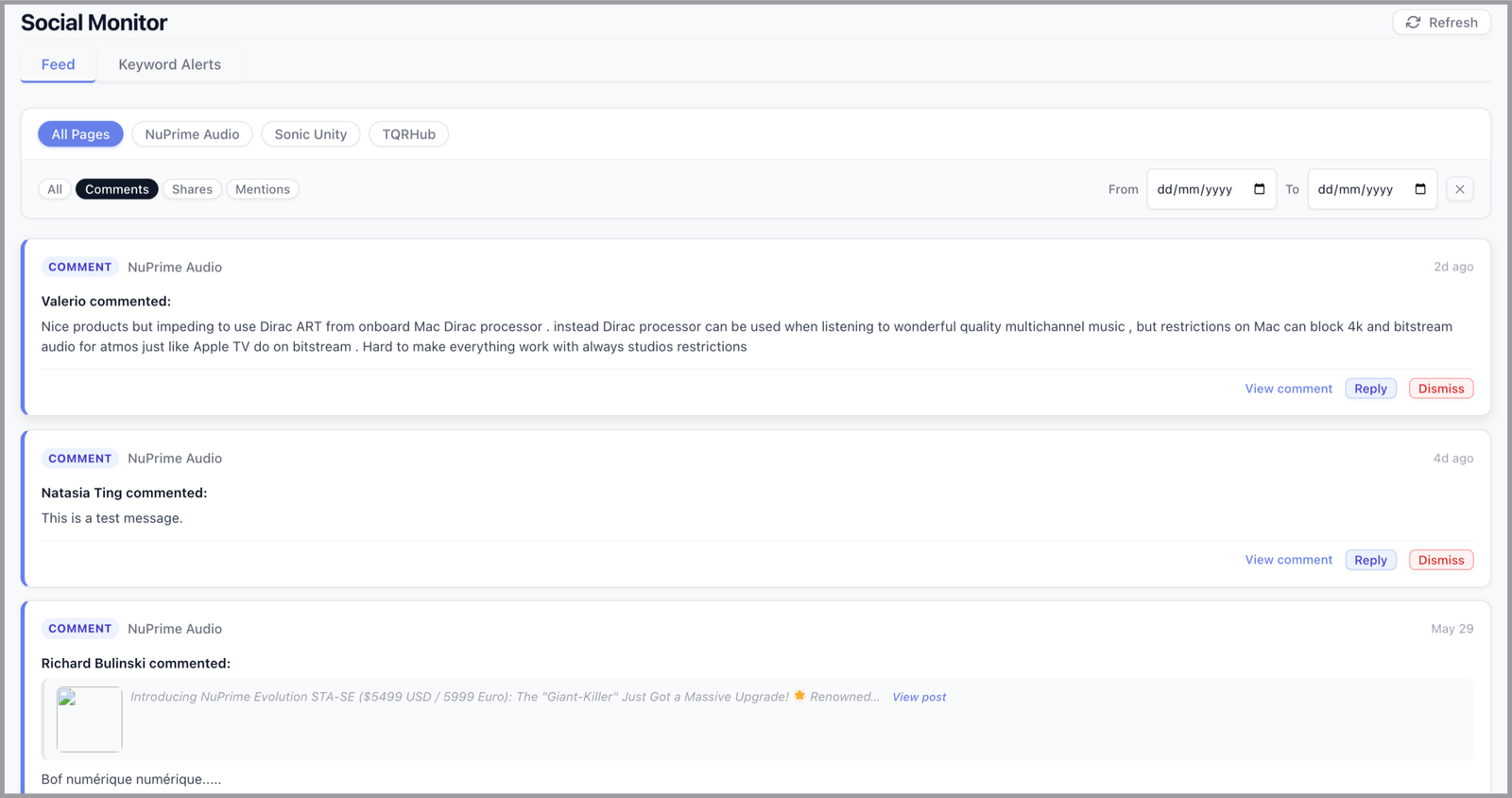
Social Monitor
How the System Routes Messages
- Tagged messages — routed directly to the corresponding thread
- Untagged messages — automatically routed to the customer's current active thread
- Untagged messages from new customers — directed to the main thread, visible to administrators for manual routing
- Thread isolation — each thread is fully independent; closing one does not affect others for the same customer
Message Format
TQRHub organizes customer conversations using categories and optional subtags, allowing multiple enquiries from the same customer to remain separate and easy to manage.
Customers can direct their message to the appropriate department using a category:
[CATEGORY] Your message
Examples:
- [SALES] Do you ship to Canada?
- [BILLING] I need a refund for order #123.
For additional context, customers can include an optional subtag:
[CATEGORY:SUBTAG] Your message
Examples:
- [BILLING:ORDER#123] Request refund for order #123
- [SHIPPING:ORDER#789] Where is my delivery?
- [SALES:STREAM-9X] Need pricing for 50 units
Subtags are free-form and can represent an order number, ticket ID, product name, or any identifier that helps organize conversations.
Customers can send /help at any time to receive a list of available categories and message formats. The help menu is fully configurable by an administrator.
How Message Threading Works
Every tagged conversation is automatically organized into its own independent thread with a dedicated chat history.
A single customer can have multiple active threads simultaneously—for example:
- A billing enquiry
- A sales enquiry
- A technical support request
Each thread remains independent, allowing agents to manage different topics without mixing conversations.
How replies are routed:
- With a tag — the message is directed to that specific thread
- Without a tag — the message is routed to the customer's current active thread automatically
Conversation Lifecycle
A typical conversation follows this workflow:
- Customer sends a categorized message.
- TQRHub creates (or reopens) the appropriate conversation thread.
- The thread is assigned to the appropriate team or agent.
- Agents reply directly from the web dashboard.
- The conversation continues until the issue is resolved.
- Once complete, the thread can be marked as resolved or closed.
Customer Records
TQRHub includes a contact directory where agents can manually add and manage customer information. Each contact record stores key details including:
- Name
- WhatsApp number
- Address
- Full conversation and thread history
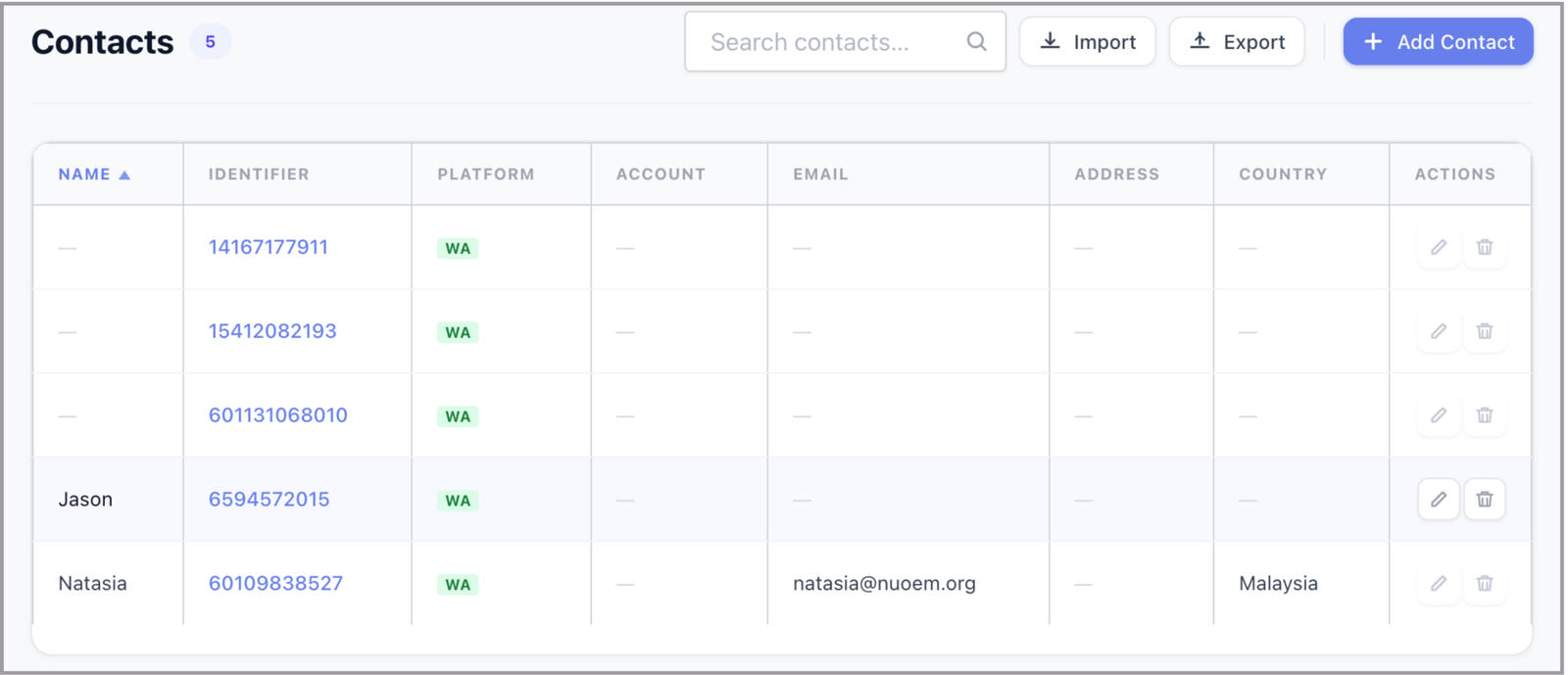
This gives agents immediate context when handling enquiries. Contact records can be created, viewed, and updated from the agent dashboard.